TripLogik membership is managed through the Manager software. You must first register your instrument in Manager. If this has not yet been done, please follow the instructions in the “Manager 2.0 – First Use” video (timestamp 1:09).
Learn more about TripLogik Map membership:
https://triplogik.ca/fr/service-de-cartographie/
Payment is done in the application
Follow the instructions in the "First use of TripLogik Manager 2.0" video Video First Use of TripLogik Manager 2.0 ( 1:09)
To learn more about Triplogik Map membership
https://triplogik.ca/map-service/
Important Note (January 2026)
During the payment process, you may see a message that appears to be an error, sometimes displayed as “ERROR OK.” Please be assured that this does not indicate a failed payment. In these cases, the transaction has been completed successfully.
We are aware that this wording can be confusing and are currently working with our payment processor to improve the message display.
What to do if this error-like message appears:
Open the Manager software.
Click on the Instrument menu.
In the list of instruments, check the Status column.
If the payment was successful, the subscription end date and the remaining number of days will be displayed.
NOTE ABOUT PAYPAL
You do not need a PayPal account to make a payment.
PayPal also acts as a credit card payment processor.
Please read the on-screen questions carefully and follow the instructions provided for full details.
If you currently have, or previously had, a PayPal account that was not closed, PayPal may prompt you to sign in because your email address is recognized and associated with an account.
If you experience any issues, we recommend using the Square payment option instead.
Checking Your Membership in Manager
At any time, you can check the status of your instrument’s membership.
To view the membership status :
Select the Instrument tab, then click on the relevant instrument.

1- Serial number of the instrument
2- Numbers of days left
3- User name currenlty using this instrument
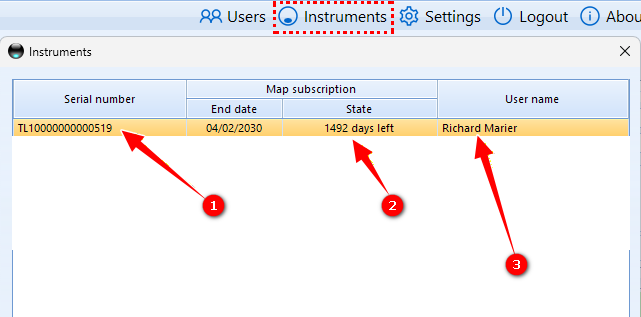
If you do not see any instrument in the list, you must add your instrument to the Manager
Consult the Video First Use of TripLogik Manager 2.0 ( 1:09) on how to add it.
New Membership or Renew
To pay for a new membership or renew,
- Select the Instrument tab
- Select the instrument from the list ( in the instruments tab)
- Click the Renew Membership button
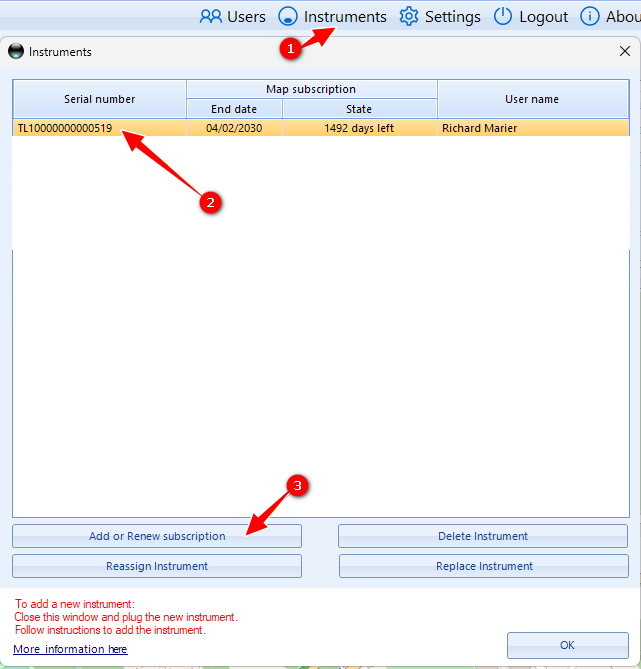
Select a Triplogik Map Membership duration and payment method
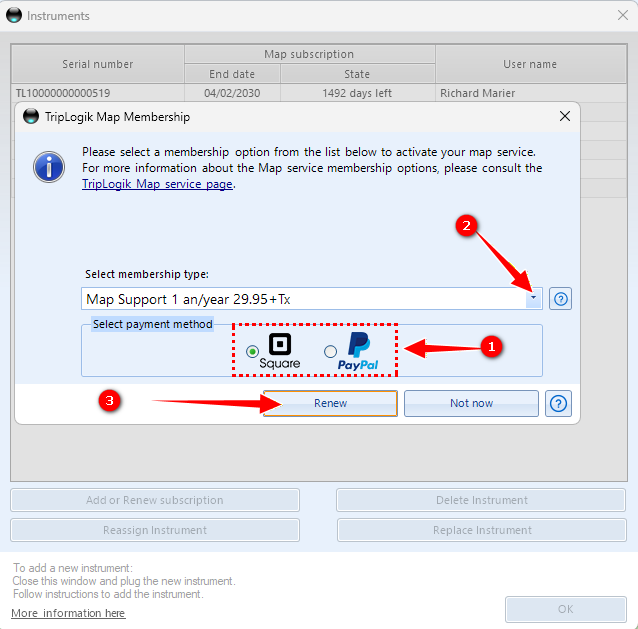
Selecting the TripLogik Map Membership Period
1- Select the payment method (we recommend Square).
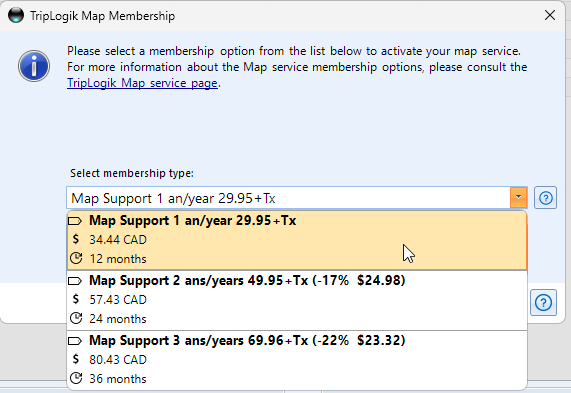
2- Select the membership period.
3- Click on Renew
For more details about the different service options, you can consult them directly on the TripLogik website or by clicking on the “?” icon. Or at this link More information about the TripLogik Map membership
Apply membership
Once you have selected a membership type, Click on the Renew button to apply the membership.
STEP 4 Payment by credit card or Paypal
An online payment window will display a selection of payment type.
Please note that Paypal is our online payment service provider and you do not need a PayPal account.
You can pay by Credit Card or Paypal
Select the grey Pay by Credit Card button
Enter your email only if you pay using your Paypal account
(2) Click on grey button to pay with a credit card

Depending you your PayPal location the screen might be different
If there is no pay with Credit card available select checkout as a Guest Enter your email and click on Continue to Payment
If you select the Credit Card option
Complete the online purchase form
CAUTION TO MASTER CARD CLIENTS
if you are using a Mastercard, please be aware that this company requires you fill the address in the form exactly as your billing address for the card. Otherwise, the transaction will be refused by Master Card.

STEP 5 After Payment is completed
A confirmation will be sent to you via Paypal.
You can also download your invoice in PDF format following payment in the confirmation windows screen
CHECK MEMBERSHIP in Manager Software
Following your Payment, you can return to the User and instrument menu
Your instrument should display the number of days remaining on your membership and the end date.
- Click on the User menu
- Select the Instrument tab
- Check the numbers of days
- Click OK to close
Your instrument is now valid and will work with the TripLogik Map server

IMPORTANT
Please wait a minute , you might have to close and restart the Manager
Information will be updated according to the Membership you selected
Was this article helpful?
That’s Great!
Thank you for your feedback
Sorry! We couldn't be helpful
Thank you for your feedback
Feedback sent
We appreciate your effort and will try to fix the article