You can consult the Online Video manual for the basic concept here: change type of trips in Manager 2.0
CHANGE A TRIP TYPE
To change a trip type (category) in Manager
- Click on the show "Edit trip" icon Top left in the map (Arrow pointing up or down in the top left of the map)
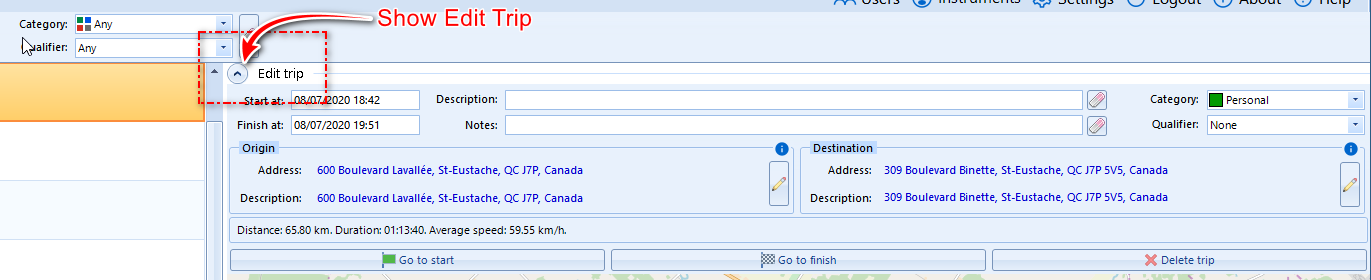
- Select the trip to be edited in the trip list
- Change the category of the trip in the edit menu , by selecting a new category from the list.
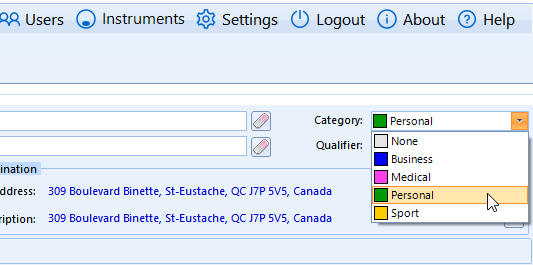
CHANGE MULTIPLE
To change multiple trips at the same time
1) Select the first trip of a consecutive list of trips
2) Hold down the CTRL key and select the last trip
3) If you are changing more than one trip, KEEP and HOLD DOWN THE CTRL key
While you change the Category type in the editor
All selected trips will be set to the new type

DELETE MULTIPLE
To change delete multiple trips at the same time
1) Select the first trip of a consecutive list
2) Hold down the CTRL key and select the last trip
3) If you are changing more than one trip, KEEP and HOLD DOWN THE CTRL key
then Right click and select delete
All selected trips will be deleted and put into the recycle of the Manager
Was this article helpful?
That’s Great!
Thank you for your feedback
Sorry! We couldn't be helpful
Thank you for your feedback
Feedback sent
We appreciate your effort and will try to fix the article