When a user needs to be replaced
For example an employee leave the company and a new one will take his place,
There are two methods, depending on your configuration
- Reassignment of an instrument in the same database (When used on the Same physical PC)
- Reallocation of an instrument from different databases (When used on two different PC)
Reassigning an instrument in the same database
If you are using a single PC with all your users in the same database
OR
If you are reusing the old users PC
1) Add the new user to the list
Open user Menu , click add user and edit , click Save
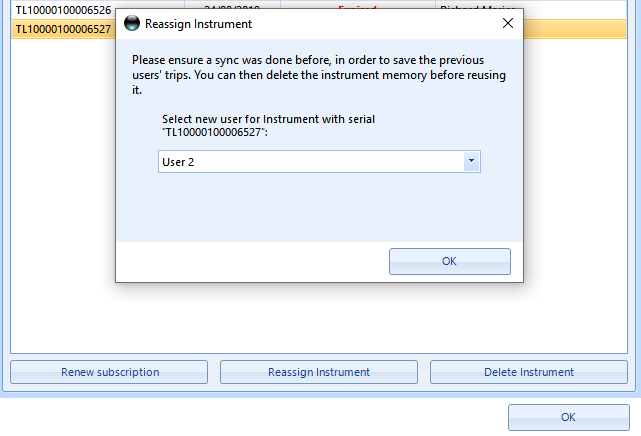
2) Click on the instrument tab in the Users and instrument menu
Select the instrument to be reassigned
Click on the reassign instrument and select t he new user of this instrument
Click OK and OK again to close the menu
Reassigning an instrument from different databases
If you are using multiple PC and the users are set in different databases ( 2 users with 2 PC)
1) Create the new user in the new PC
Open user Menu , click add user and edit , click Save
2) Open a support ticket and ask for a user transfer
Create a new support ticket here http://triplogik.freshdesk.com/en/support/home
Ticket must Include
- The old user email
- The new user email
- The serial number of the instrument
Since those users are like independent clients, the transfer must be done by TripLogik from one user to an other.
NOTE
- Failure to complete step 1 will prevent the process from working .
- Ticket with missing information will automatically be deleted.
Was this article helpful?
That’s Great!
Thank you for your feedback
Sorry! We couldn't be helpful
Thank you for your feedback
Feedback sent
We appreciate your effort and will try to fix the article