Many customers use TripLogik Manager individually.
However, if you manage a business with multiple users and multiple instruments, this guide will explain how to efficiently configure a multi-user environment to manage your users and instrument assignments.
Subjects in this article
- Understanding the Manager Concept
- The Role of TripLogik Map
- How Data Is Processed
- Understanding the TripLogik Account VS users
- Understanding User Types
- Before Configuring Your Users
- Personal Account or Business Account ?
- Configuring a Business Account
- What about if an employee manages his reports on their own computer ?
Understanding the Manager Concept
TripLogik Manager is a local SQL database installed on a computer. All trip-related information is stored locally in the Manager to generate mileage reports.
The data stored in the Manager application includes:
- Trips;
- GPS coordinates;
- Start and end addresses;
- Routes traveled;
- Distances;
- Times;
- Classifications (business or personal);
- All information required to generate reports;
- Instruments and their assigned users;
- TripLogik account login information (TripLogik Map server).
The Role of TripLogik Map
The TripLogik Map service does not store any data related to your trips.
The server only stores:
- Information related to the owner’s account (TripLogik account);
- Information related to your instruments and the status of their subscriptions.
No trip history or visited addresses are stored on TripLogik servers.
All trip data remains stored locally in your TripLogik Manager application.
How Data Is Processed
When the instrument is connected to your computer, the GPS data is transferred to Manager as raw data.
Manager then communicates with the TripLogik Map server to convert the GPS coordinates through geocoding into usable information, including:
- Physical addresses;
- Departure and arrival times;
- Routes traveled;
- Distances traveled;
- Trip types.
This process is fully automated.
Once the information has been processed, it is stored exclusively in Manager’s local database on your computer.
TripLogik never stores your trips or the locations you have visited. No logs of the information processed or accessed are created or retained by TripLogik.
Understanding the TripLogik Account (TripLogik Map Membership)
During the initial setup of TripLogik Manager 2.0, Manager communicates with the TripLogik Map server to create an administrator account.
This account is automatically created using your name, email address, and password during the initial setup.
The first account created is always designated as the administrator and owner of the TripLogik account.
Security Note
The TripLogik Map server will send a confirmation email to the email address used when creating the account.
The user must confirm their email address before the account can be used.
Understanding User Types
As mentioned previously, during the initial installation of TripLogik Manager, the first user automatically becomes the Primary Administrator.
For an individual user who owns and uses their own instrument, there is no need to create additional users, since they are the only user of the system.
The administrator is the account owner and has full management rights.
The administrator can:
- Add users;
- Delete users;
- Add instruments;
- Assign and reassign instruments to users;
- Manage instrument memberships;
- Replace instruments;
- Modify and create custom report formats.
Important: An administrator is not required to use an instrument but can have one assigned if needed.
Two Types of Users in Manager
We distinguish between two main types of users in TripLogik Manager:
TripLogik Account
The TripLogik Account is the primary account.
It is used to authenticate Manager and authorize access to the TripLogik Map online geocoding service, as well as to provide account management functions.
The TripLogik Account is associated with the account owner / Primary Administrator.
Local Users
Local Users are created directly in Manager under the administrator's TripLogik Account. They do not have their own TripLogik Account.
A Local User can use Manager with the instrument assigned to them, either:
- On their own PC; or
- On the administrator's PC.
In either case, Manager must be configured using the primary TripLogik Account to which the Local User belongs.
In Summary
- TripLogik Account → The primary account used to authenticate Manager and connect to the TripLogik Map server. It belongs to the account owner / Primary Administrator.
- Local Users → Allow additional users to use Manager under their own name with their assigned instrument, either on their own PC or on the administrator's PC. They do not have their own TripLogik Account.
Two Types of Local Users
1. Local Users with Secondary Administrator Rights
These users:
- Have certain administrative privileges, such as managing users and modifying report formats;
- Can use the instrument assigned to them;
- Are not the owner of the TripLogik Account.
2. Standard Local Users
These users:
- Use only the instrument assigned to them;
- Have no administrative rights;
- Are not the owner of the TripLogik Account.
Before Configuring Your Users
Before you begin, you need to determine how your company wants to manage its instruments.
There are two options:
A) Each employee has their own TripLogik Account
This option is not recommended, unless the users are administrators or owners of the company.
B) All users are grouped under a single company TripLogik Account
This is the recommended configuration for most businesses with multiple users and instruments.
Important: This decision should be made carefully, as changing the account structure later can require additional reconfiguration.
Personal Account or Business Account
If a user creates their own personal TripLogik Account, any instruments registered to that account cannot be transferred to a business account without a specific transfer procedure performed by TripLogik Support.
Likewise, an instrument that is already associated with a business account cannot be added to another TripLogik Account.
An instrument can belong to only one TripLogik Account at a time.
If another account attempts to register the same instrument, the server will automatically reject the operation.
This security feature helps protect the instrument owner against theft and identity theft by preventing unauthorized access to the user’s personal information.
Configuring a Business Account
Step 1 Create the Administrator Account
An administrator must install TripLogik Manager 2.0 on their computer.
During the initial setup, the company's primary TripLogik Account is automatically created.
This account will then be used to manage all users and instruments within the company.
Note: If you are installing Manager and already have a TripLogik Account, click “Existing Account” to configure Manager using your existing account.
Important: It is strongly recommended to use a generic company email address for the primary TripLogik Account, such as:
This ensures that the company retains control of the account if the person responsible for managing TripLogik changes.
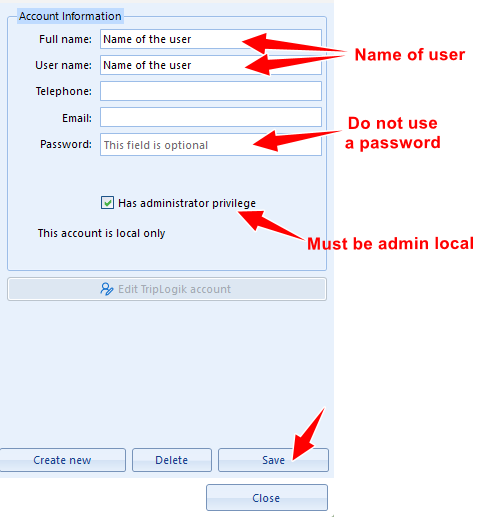
Step 2 Add Local Users
Local Users are people to whom your organization assigns an instrument.
Unlike TripLogik Account users, Local Users do not have their own personal TripLogik Account. They operate under your company's TripLogik Account to access the services required to transfer and process the data from their assigned instrument.
Because Local Users are managed entirely within your organization, TripLogik does not store any information about them. The TripLogik server does not know their identity or which instrument has been assigned to them.
In the Users menu:
- Add each employee.
- Create their user profile.
- Save the changes.
Note: It is not necessary to create a password for a Local User if that user does not have access to the computer on which Manager is installed.
Step 3 Add the Instruments
Connect the instruments to the computer one at a time.
Each instrument will be automatically detected and registered in the Manager database.
When adding an instrument, Manager will ask which user the instrument should be assigned to.
Simply select the appropriate user from the drop-down list to assign the instrument to that user.
Instrument Activation
If You Purchased the Instruments Directly from TripLogik
Activation is performed directly by TripLogik when your company membership is activated.
Checking an Instrument's Membership Status
After adding an instrument to Manager, you can check its membership status from the “Instruments” menu.
This menu displays all instruments registered in your Manager application. For each instrument, the following information is available:
- Instrument serial number;
- Membership expiration date;
- Number of days remaining before expiration;
- Name of the user to whom the instrument is assigned.
This section allows you to easily monitor membership status and manage instrument assignments within your organization.
What about if an employee manages his reports on their own computer ?
installing Manager on an Employee’s Computer
If an employee needs to manage their own trip reports from their own computer, TripLogik Manager can be installed on that computer.
The employee will then be able to transfer data from their assigned instrument, generate their own PDF mileage reports, and send them to their manager or employer.
To configure Manager correctly, follow the steps below.
Step 1 — Install and Configure Manager
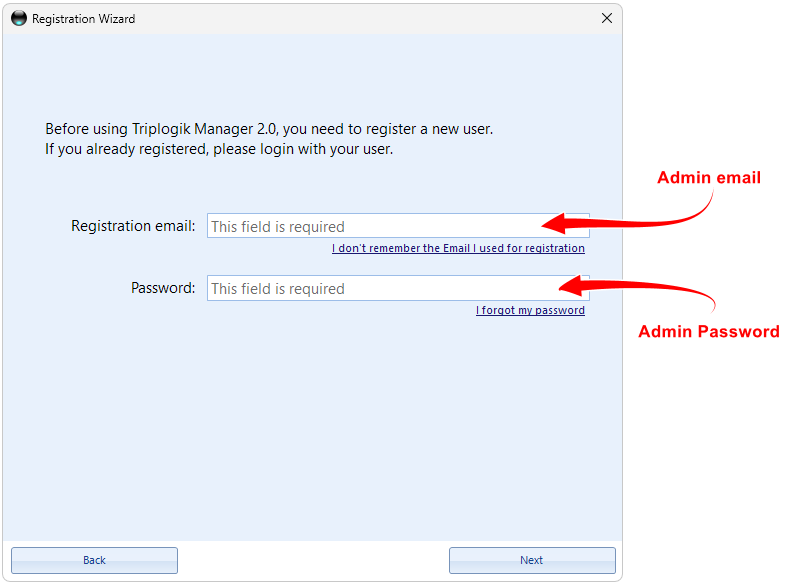
Important: Do not disclose the administrator account username or password to your employees.
We recommend that the administrator perform the initial installation and configuration of Manager on the employee’s computer.
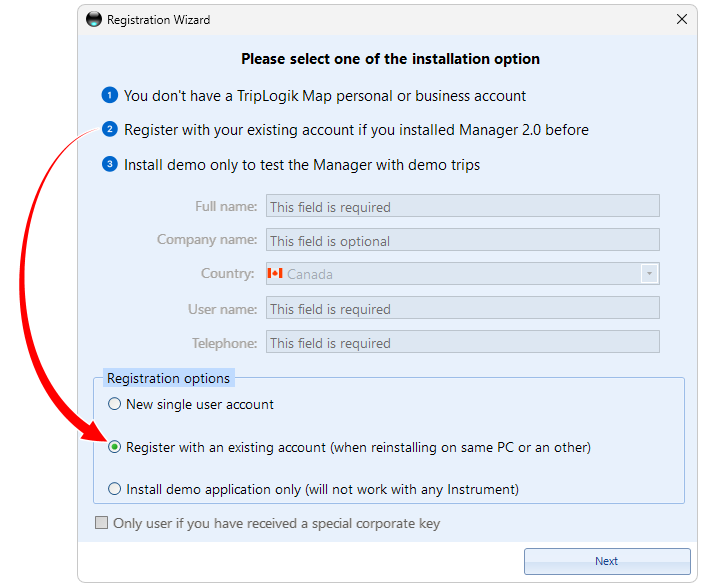
- Install TripLogik Manager 2.0 on the employee’s computer.
- When configuring Manager, select “Existing Account.”
- Use the administrator’s TripLogik Account credentials to register and configure Manager.
Step 2 — Create a Local User
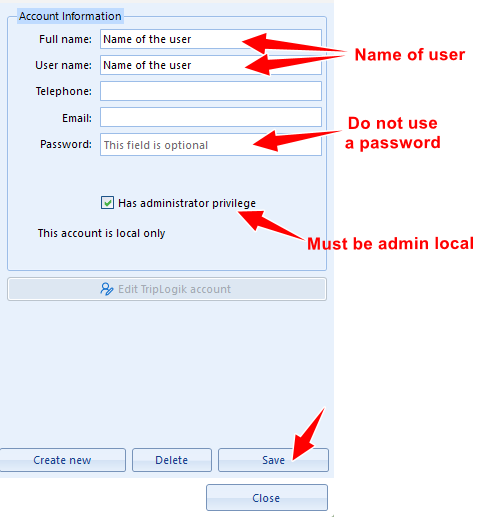
Click the “Users” menu.
- Select “Create Local User.”
- Enter the user’s full name and username.
- DO NOT enter a password.
- Select “Has Local Administrator Privileges.”
- Click “Save.”
- Click “OK” to complete the setup.
Step 3 — Add the Instrument to the Employee’s Computer
Connect the instrument assigned to the employee to their computer.
Manager will detect the instrument and ask if you want to add it to the application.
- Click “Yes.”
- Assign the instrument to the Local User you just created.
Step 4 — Test the Local User Account
Once the employee’s computer has been configured:
- Click the “Logout” button located in the menu at the top-right corner of Manager.
- This will return you to the login screen.

Select the user from the list and click “OK.”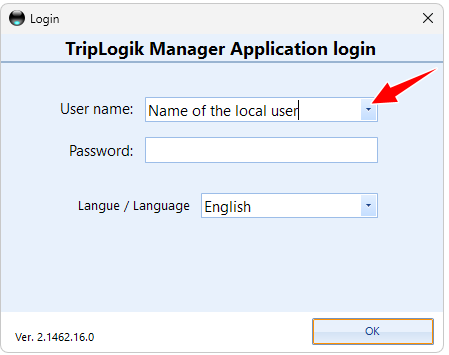
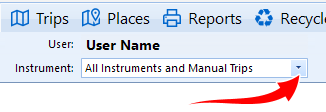
Verify that the assigned instrument appears correctly in the instrument list.
Summary
TripLogik Manager 2.0 allows you to manage multiple users and multiple instruments under a single primary TripLogik Account.
- The primary TripLogik Account is used for instrument authentication and access to the TripLogik Map geocoding service.
- The administrator can create multiple Local Users in Manager and assign one or more instruments to the appropriate users.
- Local Users do not have their own TripLogik Account. They are linked to the administrator’s primary account.
- A Local User can use their instrument on their own PC or the administrator’s PC, provided that Manager is configured with the primary TripLogik Account to which they are linked.
- The same instrument cannot be registered under two different TripLogik Accounts at the same time.
Key Point
A single primary TripLogik Account can manage multiple Local Users and multiple instruments. Each instrument is then assigned to the user who uses it.
For an individual user who owns their instrument and is the only user of the system, there is no need to create additional users.
Was this article helpful?
That’s Great!
Thank you for your feedback
Sorry! We couldn't be helpful
Thank you for your feedback
Feedback sent
We appreciate your effort and will try to fix the article